Teltonika RUT200 Industrial LTE 3G 4G WiFi Router WAN RJ45
700.00lei
General
Radio specifications | |
|---|---|
RF technologies | 2G, 3G, 4G, WiFi |
Max RF power | 32 dBm@GSM, 25 dBm@WCDMA, 24 dBm@LTE, 20 dBm@WiFi |
Bundled accessories specifications* | |
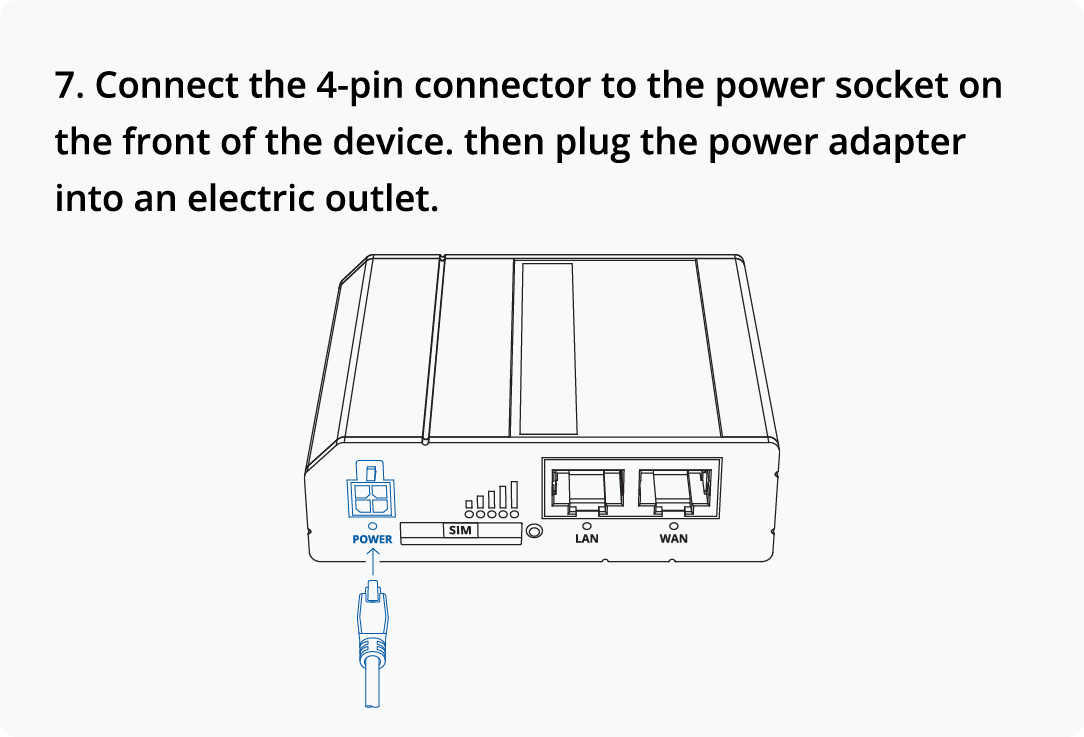
Power adapter | Input: 0.45A@100-240 VAC, Output: 9 VDC, 1A, 4-pin plug |
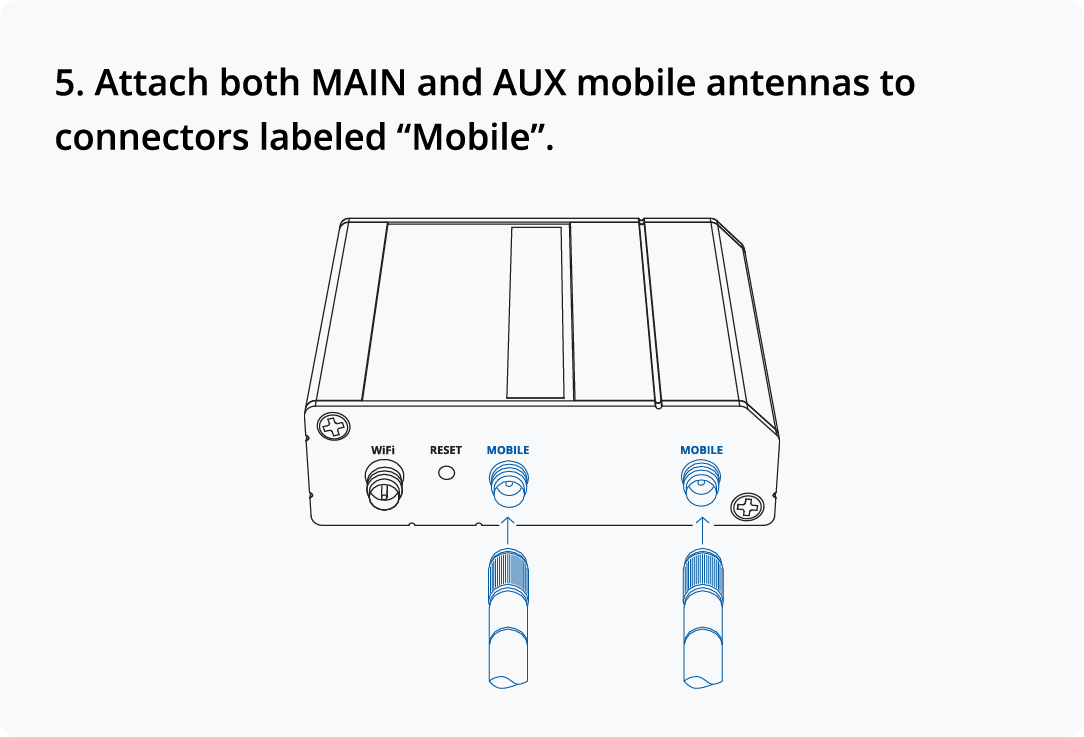
Mobile antenna | 698~960/1710~2690 MHz, 50 Ω, VSWR<3, gain** 4 dBi, omnidirectional, SMA male connector |
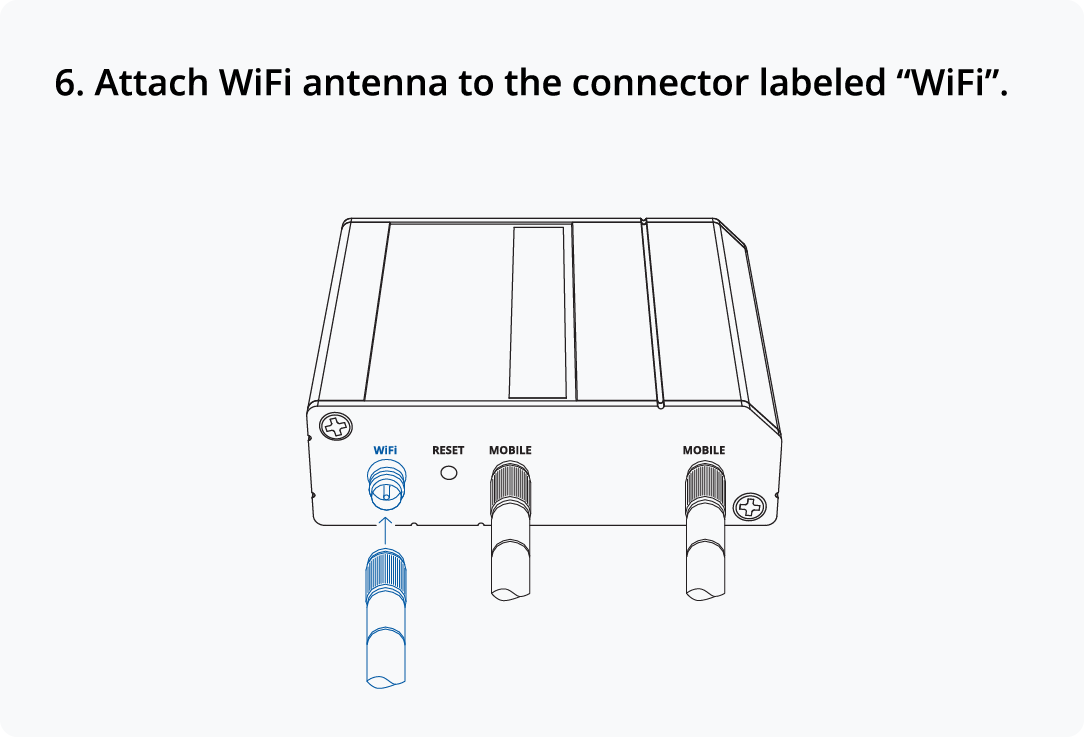
WiFi antenna | 2400~2500 MHz, 50Ω, VSWR<2.5, gain** 5dBi, omnidirectional, RP-SMA male connector |
CONNECTIVITY 4G/LTE (Cat 4), 3G, 2G
WI-FI Wireless Access Point with Hotspot functionality
WAN FAILOVER Automatic switching to available Backup connection
RMS For remote management, access & VPN services
Hardware installation
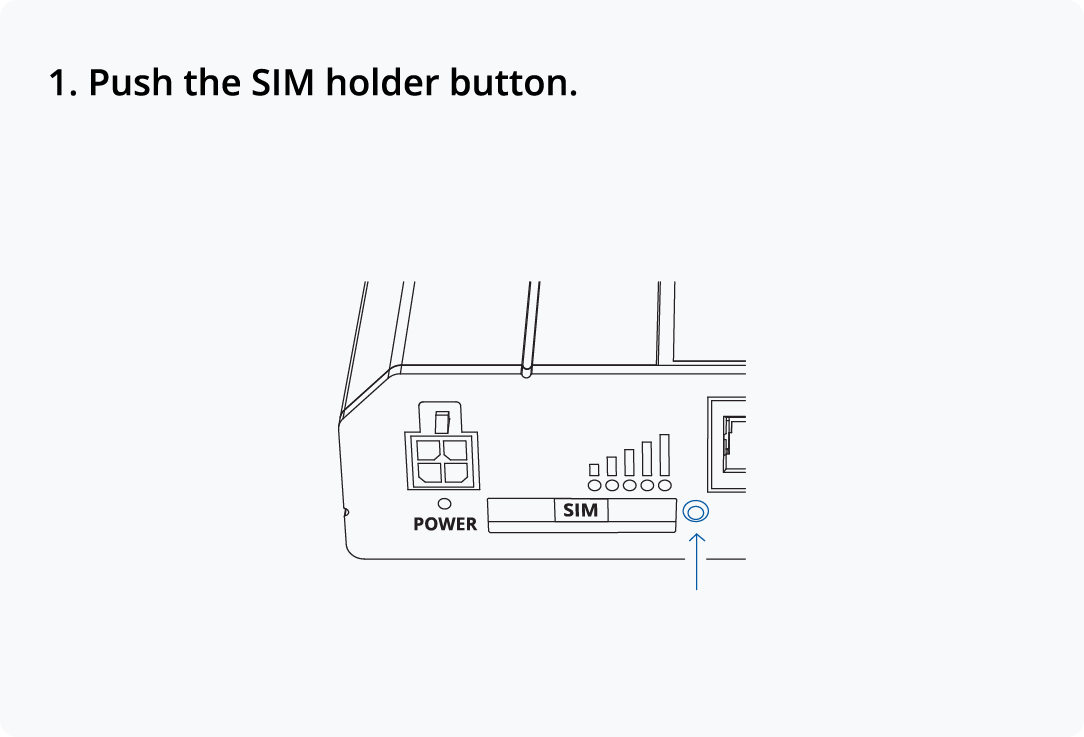 | 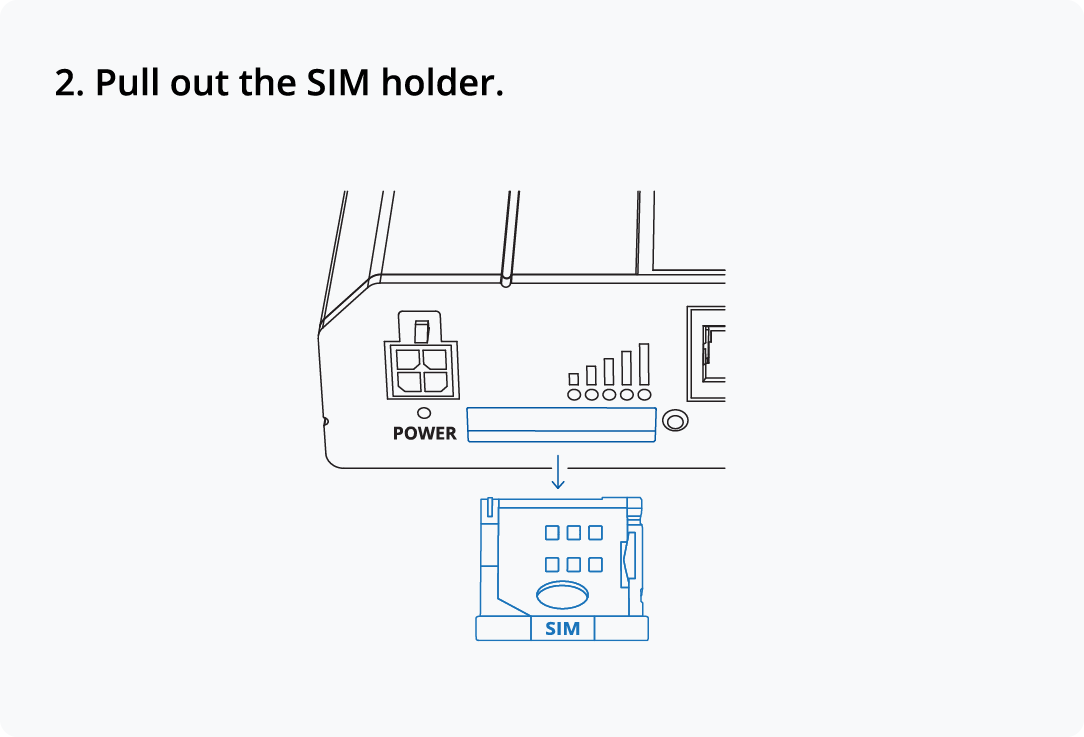 |
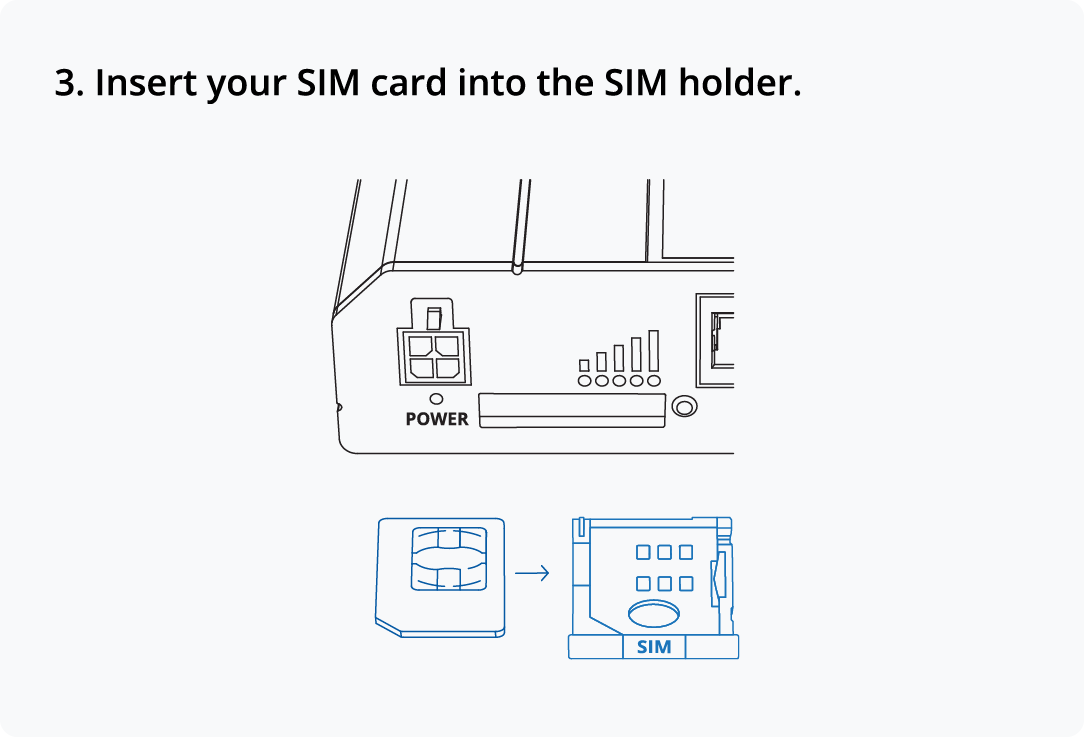 | 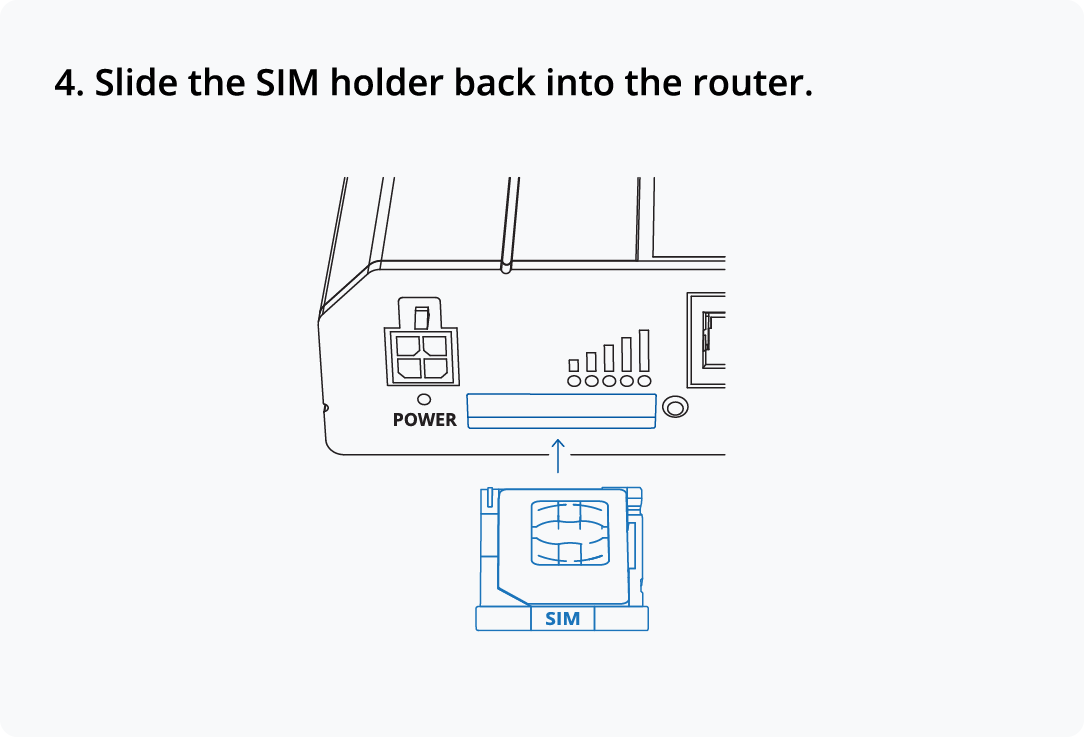 |
 |  |
 |
Configure your computer LAN (Windows)
1. Ensure the Network connection is Enabled. Go to Start — Control Panel — Network and Internet — Network and Sharing Center. Click on the Change adapter settings in the left panel, then right-click on Network Adapter, and select Enable. | 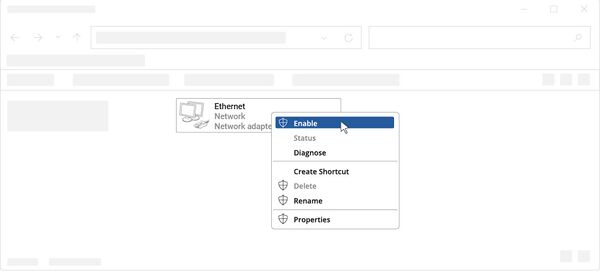 |
2. Check if IP and DNS are obtained automatically. Right-click on Network Adapter and select Properties. Then select Internet Protocol Version 4 and click Properties. | 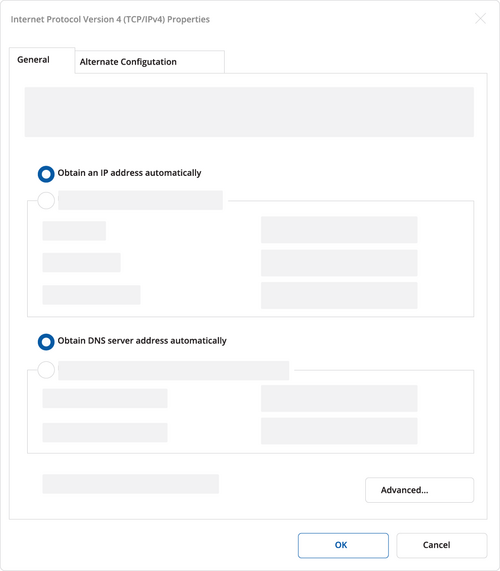 |
Configure your computer Wi-Fi (Windows)
1. Ensure the Wireless network connection is Enabled. Go to Start — Control Panel — Network and Internet — Network and Sharing Center. Click on the Change adapter settings in the left panel, then right-click on Wireless Network Adapter, and select Enable. | 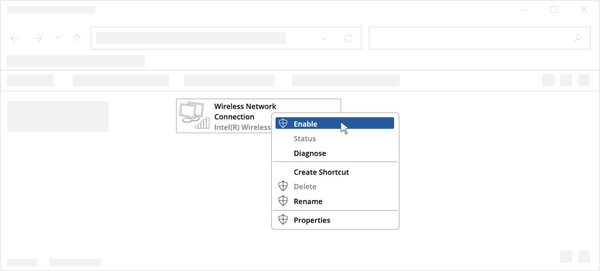 |
2. Check if IP and DNS are obtained automatically. Right-click on Wireless Network Adapter and select Properties. Then select Internet Protocol Version 4 and click Properties. | |
4. Connect to a wireless network by right-clicking on Wireless Network Adapter and selecting Connect. | 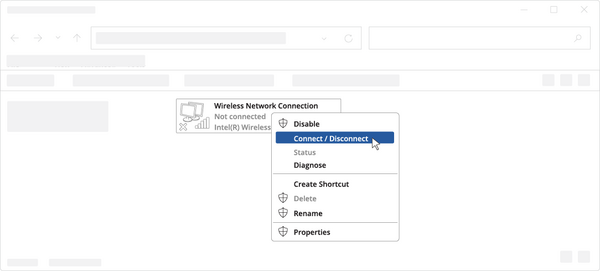 |
5. Choose the wireless network RUT200 **** from the list and click Connect. Enter the Wi-Fi password located on the device's label. | 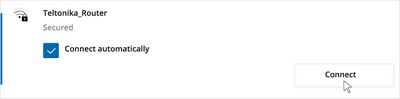 |
Login to device
1. To enter the router's Web interface (WebUI), type http://192.168.1.1 into the URL field of your Internet browser. | 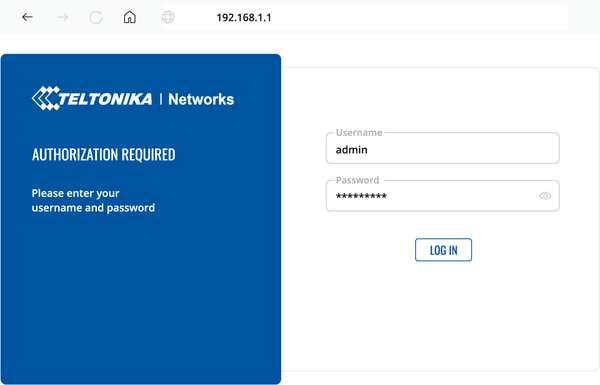 |
3. After logging in, you must set a new password for security reasons. You will not be able to interact with the router’s WebUI until the default password is changed. The new password must consist of a minimum of 8 characters. Requirements: one uppercase letter, one lowercase letter, and one digit.
|  |
Livrare in 5 zile.

HMIsetup
Follow Us
Solutionarea Online a litigiilor
Copyright © HMIsetup 2026